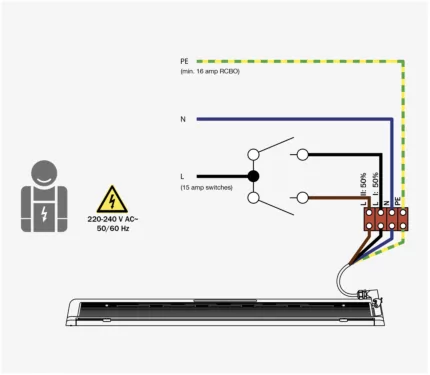
Standard Electrical Connection with 2 Gang Switch
Circuit breaker / fuse switch on the installation side
WiFi Smart Switch Connection with 3 Gang Switch
To the eWeLink APP using BLUETOOTH
BEFORE STARTING – PLEASE MAKE SURE THE WIFI SWITCH IS CONNECTED TO THE HEATER BY FOLLOWING:
Wiring diagram for the following models:
- Spot 2800W: HTS.1.SPT.28.BL, HTS.1.SPT.28.WH
- Vision 3200W: HTS.1.VIS.32.BL, HTS.1.VIS.32.WH
- Pure 3000W: HTS.1.PUR.30.BL, HTS.1.PUR.30.WH
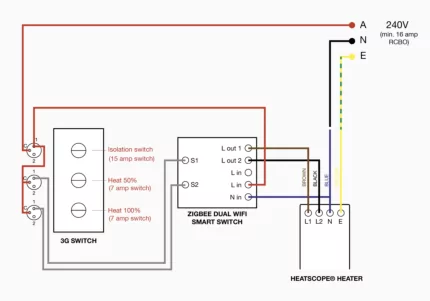
© MHS Munich Home Systems GmbH. Subject to change to all information, technical data, printing and typesetting errors.
AFTER CONFIRMING THE ABOVE, TURN THE SWITCHES ON THE HEATER TO ON AND THE OTHER ON 100%.
eWELink-Smart Home
Step 1
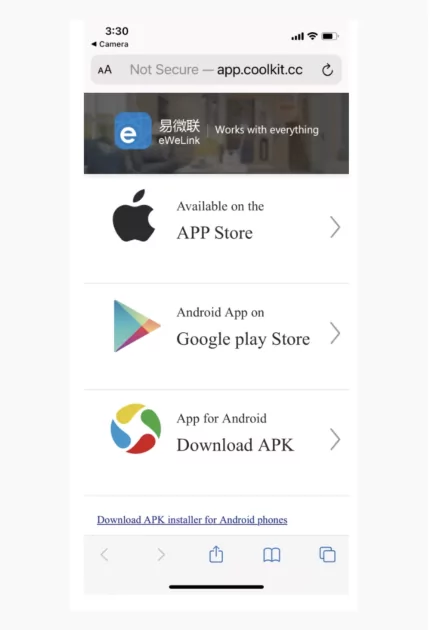
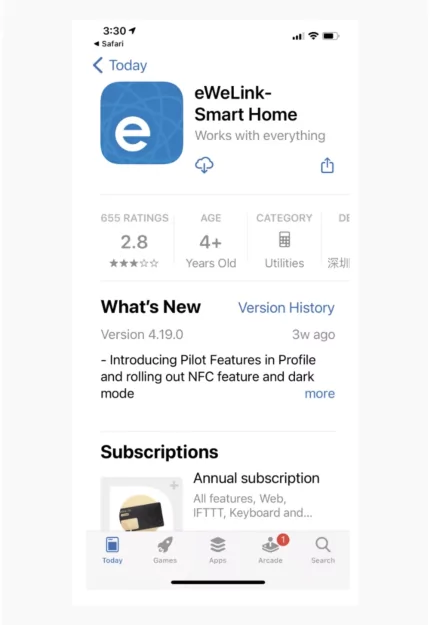
Download the eWeLink app to your cell phone or tablet and sign up for an account. You can download from Google Play or App Store.
Select to download eWELink-Smart Home and click Open once the download is finished.
Note: Although there is a note for an annual subscription cost, it is not necessary to use the app. The app functionality is not affected even without the subscription.
Step 2
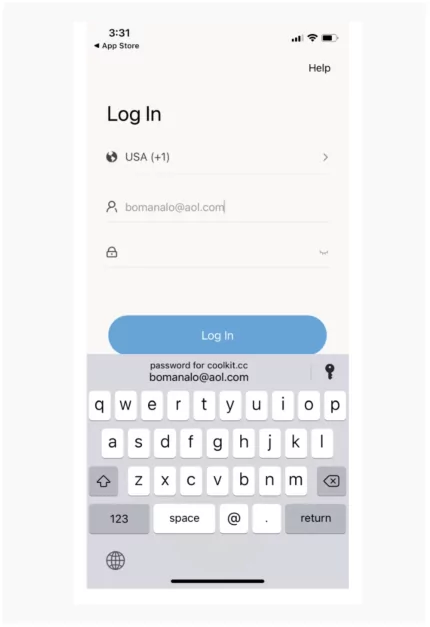
Create an account with eWeLink if you don’t have one already.Connect eWeLink to the device and your network.
Step 3
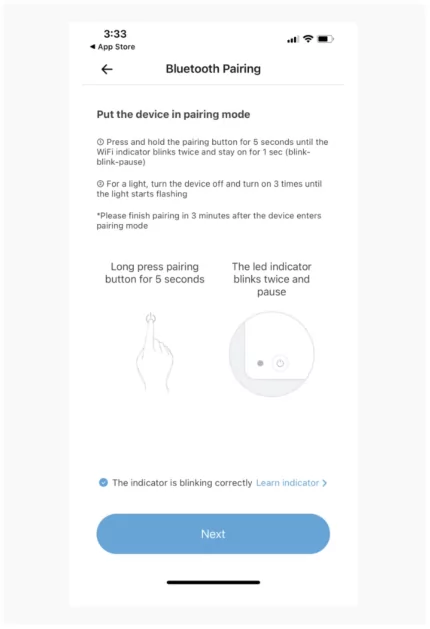
After powering the heater breaker ON, press the Isolation Switch ON to turn the Wi-Fi switch ON and to enter the Bluetooth Pairing Mode during first time use. The WiFi LED indicator will light in a cycle of 2 short and 1 long flashes. The device will exit the Bluetooth Pairing Mode if not paired within 3 minutes. If you want to enter this mode again, press the pairing button for 5 seconds until the WiFi LED indicator changes back in a cycle of 2 short and 1 long flash and release.
Step 4
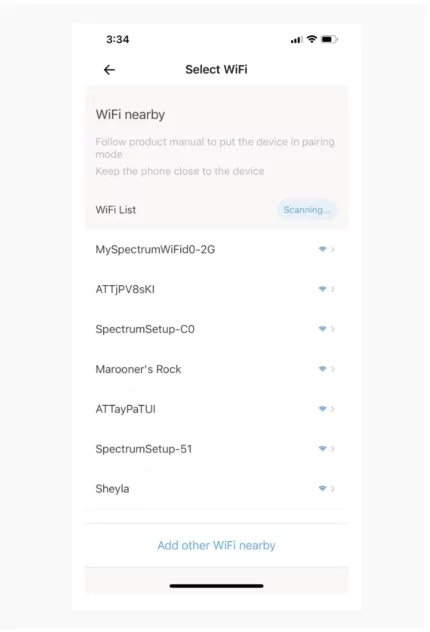
On your phone or tablet, tap “+” and select Bluetooth pairing, then follow the prompt on the APP. You will see a list of available WiFi connections. Select your home WiFi network and enter your password. Then Save. When you see the message “Device
Added Successfully”, click Done.
Step 5
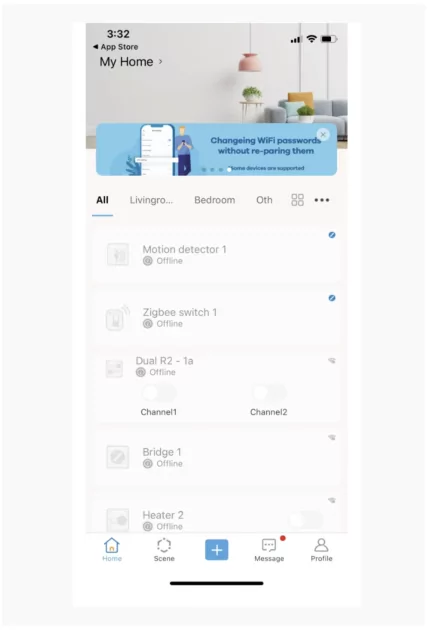
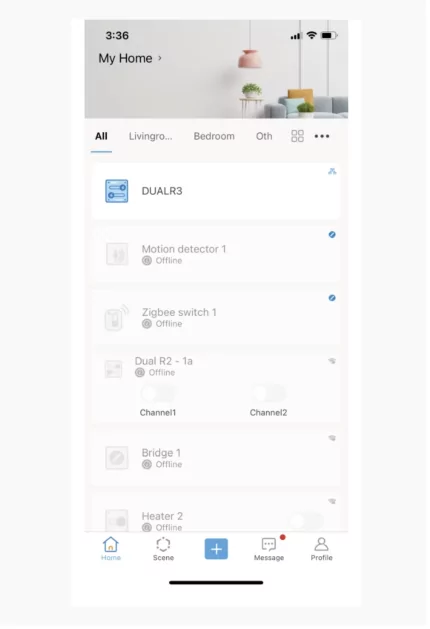
After you have successfully completed the connection and pressed Done, you will be able to see the WiFi device on the list. Select it and it will take you to the screen showing the different working modes.
Select Switch then select External Trigger Mode and select Edge mode then Save.
Step 6
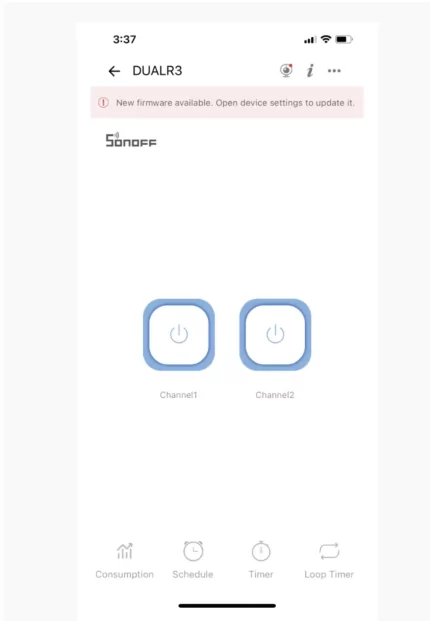
After clicking Save from the previous step, you should see the 2 switches marked Channel 1 and Channel 2. You can now control the 50% and 100% heater setting. Channel 1 turns one of the heating elements ON/OFF and Channel 2 controls the other heating element ON/OFF. To shut the heater OFF, press the Isolation button on the wall switch to OFF.
NOTE: If you are connecting multiple Heatscope heaters, repeat steps 2 – 5 until all switches are paired.